For the complete documentation index, see llms.txt. Markdown versions of all docs pages are available by appending .md to any docs URL.
Serve the UI on a gateway
Verified : Code examples on this page have been automatically tested and verified.Give the UI a gateway of its own so that UI traffic and proxy traffic do not share a port.
About
A generated configuration attaches the UI to the same default gateway that serves your proxy traffic. Giving the UI a gateway of its own keeps UI traffic and proxy traffic on separate ports. Separate ports let you publish the proxy port while the UI port stays internal, and they let you apply different authentication policies to each.
A gateway of its own is also the prerequisite for the next two guides, because an authentication policy in ui.policies applies to the gateway that serves the UI, and a TLS certificate is configured on that gateway.
Before you begin
- Install standalone agentgateway.
- Launch the UI so that you know where agentgateway serves it today.
Serve the UI on its own gateway
You can make this change in the UI or in your configuration file.
The UI must be able to save changes, which depends on your storage mode. For more information, see Save changes from the UI.
In Docker or Helm, publish port 4001 before you start. The UI cannot publish a port, and the request in step 5 fails without it. For the steps, see the Docker or Helm tab in the Config file tab.
Add a gateway for the UI.
- Open Traffic > Gateways, and click Add gateway.
- Enter
ui-gatewayfor the Name and4001for the Port, and click Save gateway.
Open the Settings > UI page, such as http://localhost:15000/ui/settings/ui.
From the Public gateway dropdown, select
ui-gateway. To serve the UI only on the admin interface, select None instead.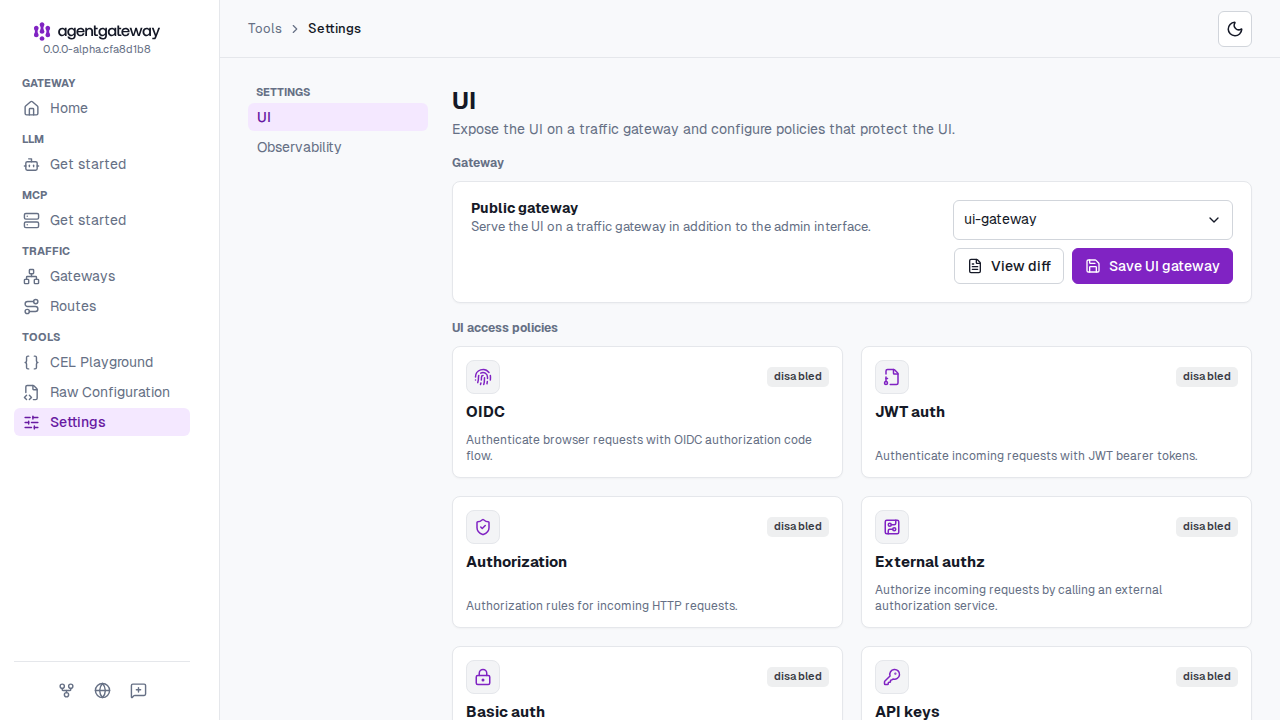
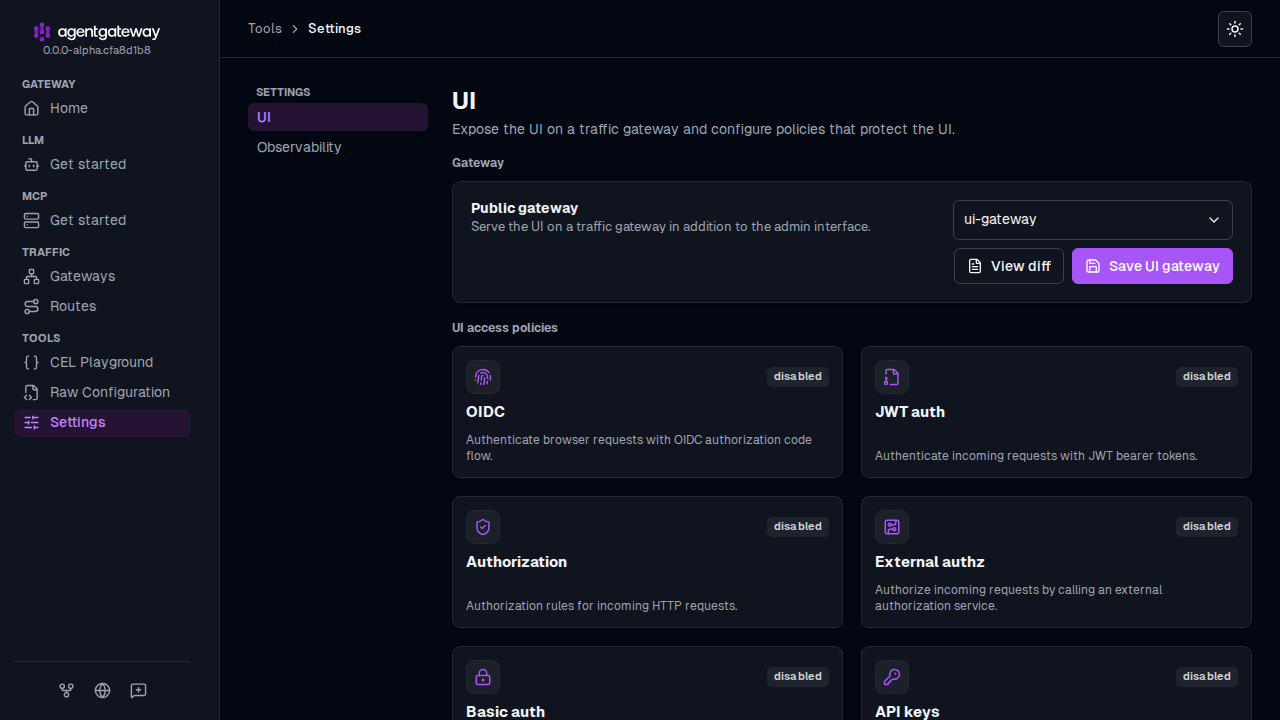
Click Save UI gateway. If the UI is already served on a gateway, confirm the change in the Change UI gateway? dialog.
If you opened the UI through the gateway that you changed or removed, the page stops loading. Open the UI on the new gateway or on the admin interface. If you chose None, the UI also removes the
uisection from your configuration, including anyui.policies.Confirm that the UI answers on its own port.
curl -s -o /dev/null -w "%{http_code}\n" http://localhost:4001/uiExample output:
200
Note
The UI gateway is an addition, not a replacement. Agentgateway still serves a copy of the UI on the admin interface, which is loopback-only and which you do not need to change. Adding this gateway does not put the admin interface’s debugging endpoints on it. For more information, see The UI and the admin interface are not the same thing.
Next steps
- Secure the UI with an OIDC login on the gateway that you created.
- Expose the UI on your own HTTPS hostname.